Devops Setup
When you want to run the Dev Ops pipelines for Tosca Automation the base script you need is located: https://github.com/Tricentis/ToscaExecutionClient this github repository has both windows and linux agent files which can be used to run from any agent and trigger on any other machine.
Azure DevOps Setup (HTTP)
Create a repository with the following structure

| File | Description |
|---|---|
| azure-pipelines.yml | will handle the work necessary to bring down our repo, and perform any file changes needed |
| test.json | contains the test case guid for which to perform the automation test execution on |
| tosca.ps1 | ToscaExecutionClient which will call the appropriate server for automation execution |
Tosca.ps1
To provide value to this file navigate to the following url and copy paste the code into your .ps1 or .sh file based on your operating system.
https://raw.githubusercontent.com/Tricentis/ToscaExecutionClient/main/tosca_execution_client.ps1
Once you have the execution file created you will want to create a dummy test file for checking your pipeline connectivity.
test.json
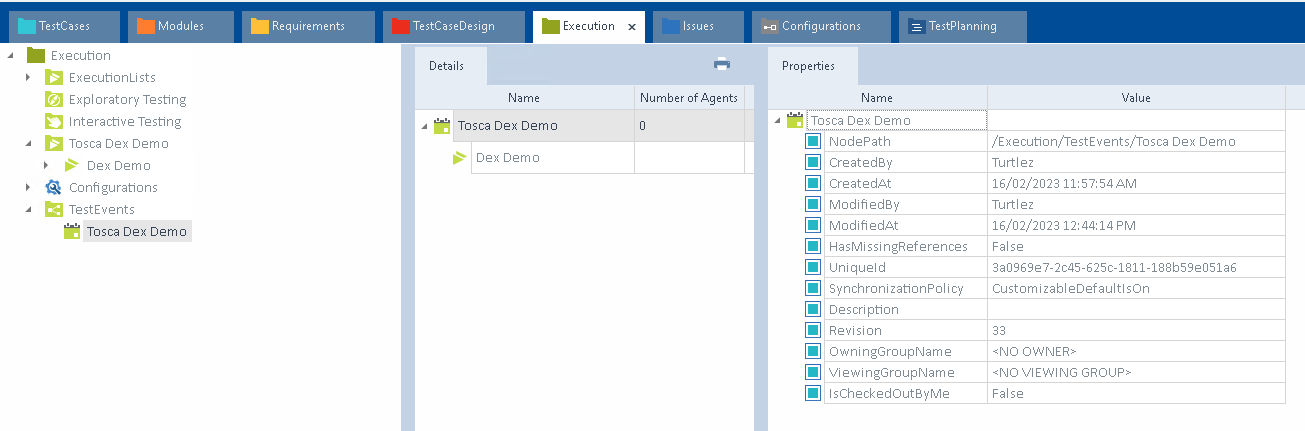
Create this file and then check in Tosca -> ExecutionList -> Your ExecutionList for the lists. In the properties tab, after clicking on the test event(s) you want to fire, copy the UniqueId and create a new json file similar to the example below. Image of where to find the UniqueId is after the json file example
[
	"3a0969e7-2c45-625c-1811-188b59e051a6"
]
azure-pipeline.yml
There is limited items required for the pipeline to run, below you will find an example yml file that will get the test cases run, and results stored back into DevOps.
trigger:
- main

steps:
- task: PowerShell@2
  inputs:
    filePath: 'Tosca.ps1'
    arguments: '-toscaServerUrl http://localhost -projectName tosca_demo -eventsConfigFilePath test.json'
- task: PublishTestResults@2
  inputs:
    testResultsFormat: 'JUnit'
    testResultsFiles: '**/*_results.xml'
Azure DevOps (HTTPS)
For working with Azure Dev Ops and Tosca Server over HTTPS you will need to run a different pipeline yml. The steps above for setting up a new pipeline are the same you just need to provide a few more steps before you can make it all work.
First step is to navigate to your tosca server dash board https://localhost so you see.
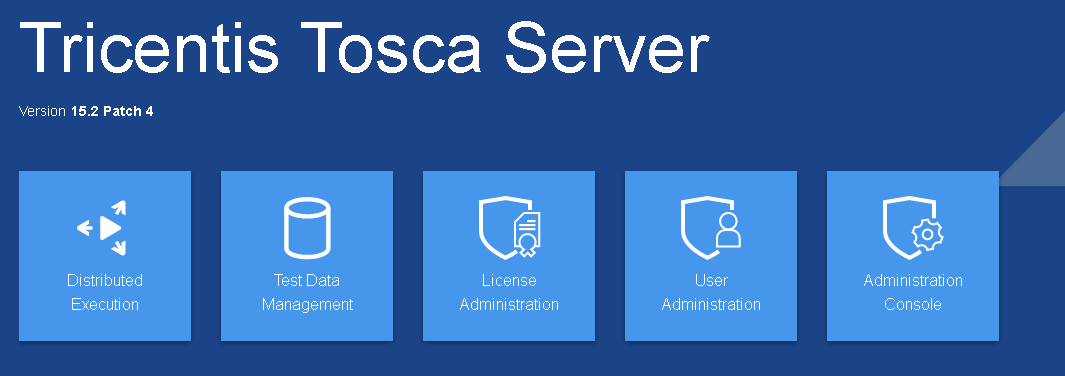
Click on the User Administration link. The first time I clicked this link I was given a login screen. I used the following
username: Admin
password: Admin
when I logged in I saw the following screen
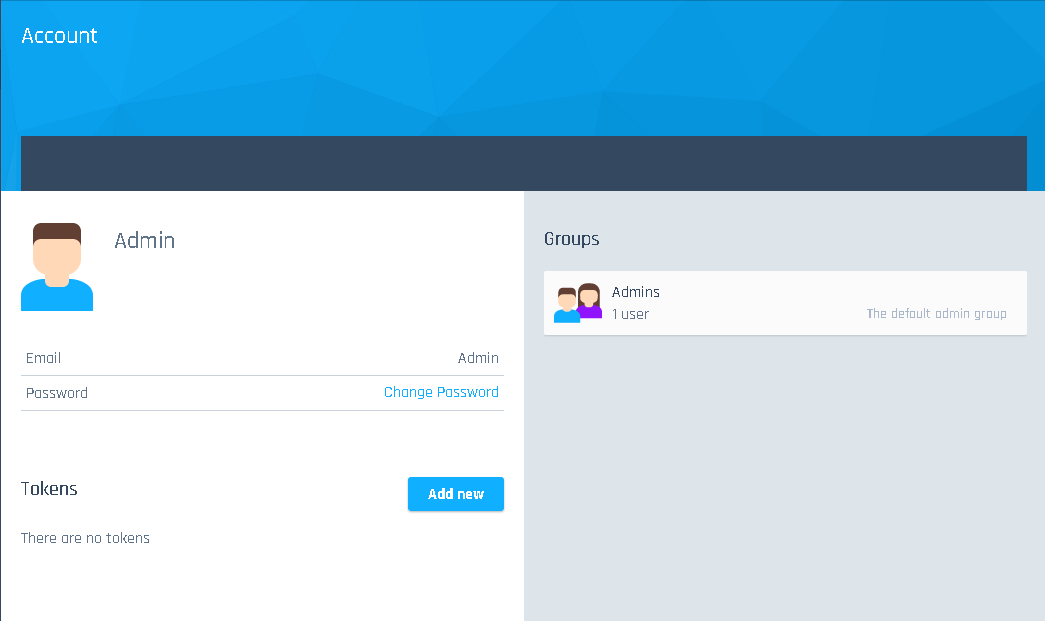
We need to click on the Add New Button next to the tokens, this will provide our user access to the tosca server. Please note this is mandatory for HTTPS to work. After you click on the button you will see this pop up.

Fill in the information. Mostly just give the token a name and maybe extend the expiration to a different date. You will require Full Access for the user. Once completed click Generate Token. Then the next pop up will display.
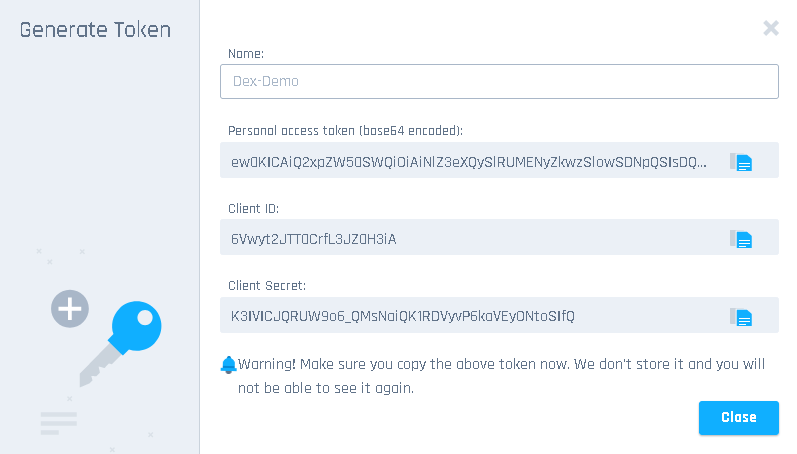
Ensure you copy all three tokens as this will be the only time you can see them. Also there is no regenerate, so if you lose this you will have to follow the same process of adding a new token. Once these are saved you can then put the into the pipeline yml below.
Mainly we need to add the following:
-clientId 6Vwyt2JTT0CrfL3JZ0H3iA
-clientSecret K3IVICJQRUW9o6_QMsNaiQK1RDVyvP6kaVEyONtoSIfQ
With all of this setup, make sure the server you are pointing to is the correct url, or your certificate validation will fail and no tests will run.
trigger:
  - main
steps:
  - task: PowerShell@2
    inputs:
      filePath: 'Tosca.ps1'
      arguments: '-toscaServerUrl https://tosca.turtleware.au -projectName tosca_demo -eventsConfigFilePath test.json -clientid QFkmQSR1DUykrI5UFYC3Nw -clientSecret zkAwC0eIckOykLnJur73gQz7ShpEd830G0bmubGF1lBQ'
  - task: PublishTestResults@2
    inputs:
      testResultsFormat: 'JUnit'
      testResultsFiles: '**/*_results.xml'
Jenkins Server Setup (Linux Jenkins Agent)
When you want to run the Dev Ops pipelines for Tosca Automation the base script you need is located: https://github.com/Tricentis/ToscaExecutionClient this github repository has both windows and linux agent files which can be used to run from any agent and trigger on any other machine.
For my Jenkins setup I pull commits directly from Github, via a private organization and perform the pipeline runs in my internal network.
Github Repository Layout
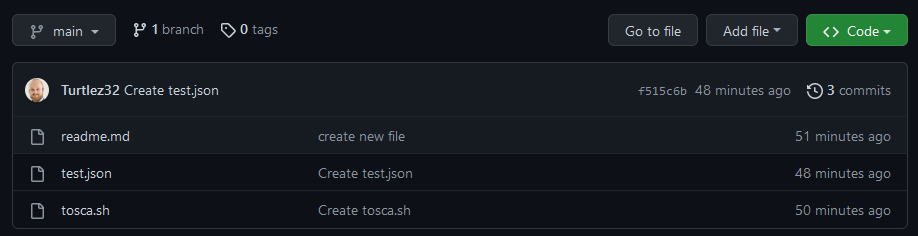
Tosca.sh
To provide value to this file navigate to the following url and copy paste the code into your .sh file
https://raw.githubusercontent.com/Tricentis/ToscaExecutionClient/main/tosca_execution_client.sh
Once you have the execution file created you will want to create a dummy test file for checking your pipeline connectivity.
test.json
Create this file and then check in Tosca -> ExecutionList -> Your ExecutionList for the lists. In the properties tab, after clicking on the test event(s) you want to fire, copy the UniqueId and create a new json file similar to the example below. Image of where to find the UniqueId is after the json file example
[
	"3a0969e7-2c45-625c-1811-188b59e051a6"
]
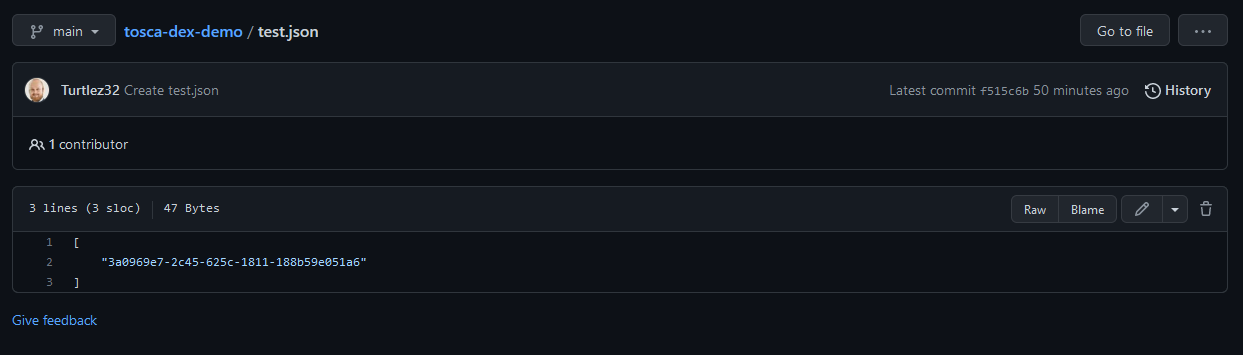
Jenkins CI Server Setup
For Jenkins I have used the freestyle project and pipeline types.
Free Style Project Setup
Initiate the Git SCM download
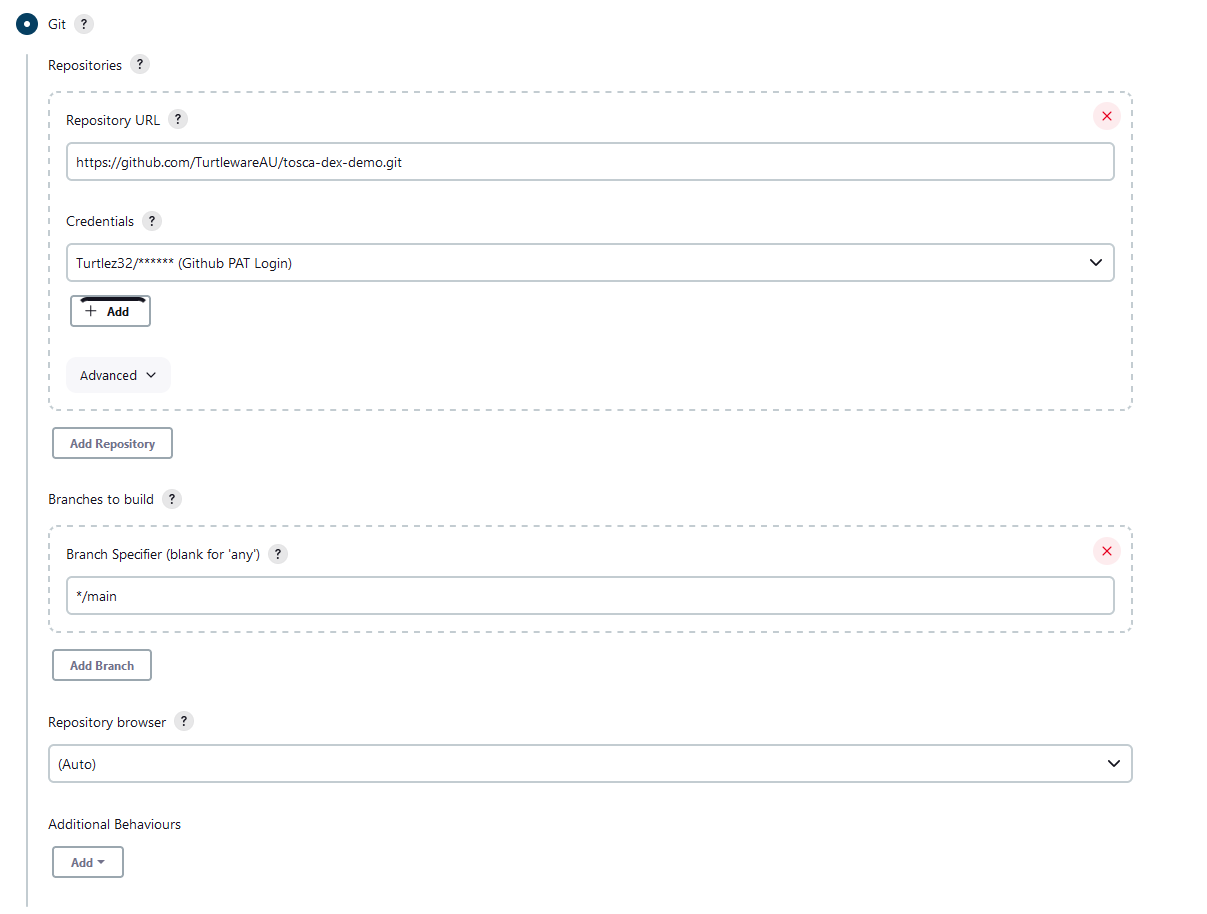
Next We want to clean up the workspace with the following check box, if not we will keep accumulating test results and will be reporting incorrectly

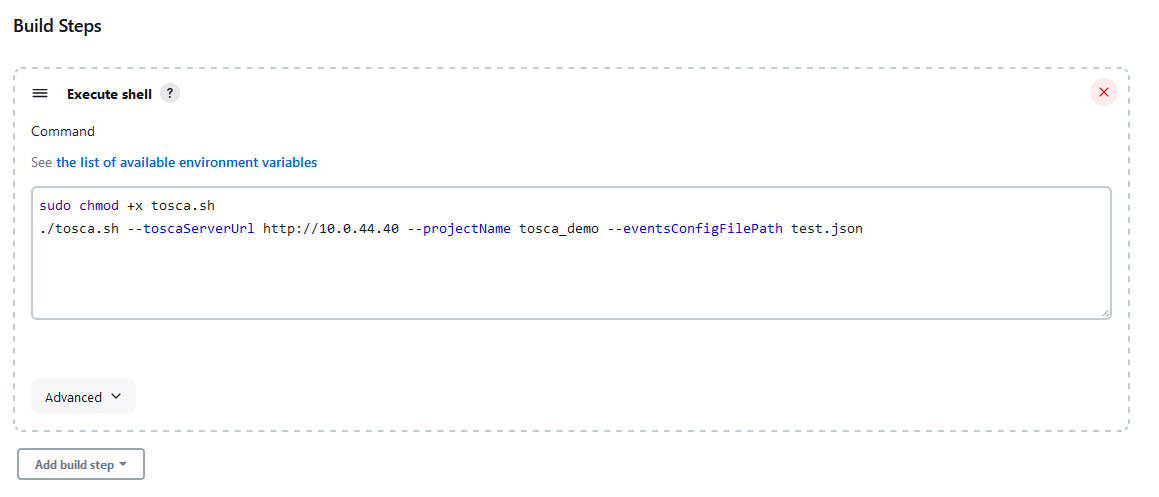
Next we will setup our build step which will be to perform a chmod +x on the file we will be using to execute our test cases. Followed by the execution of this file
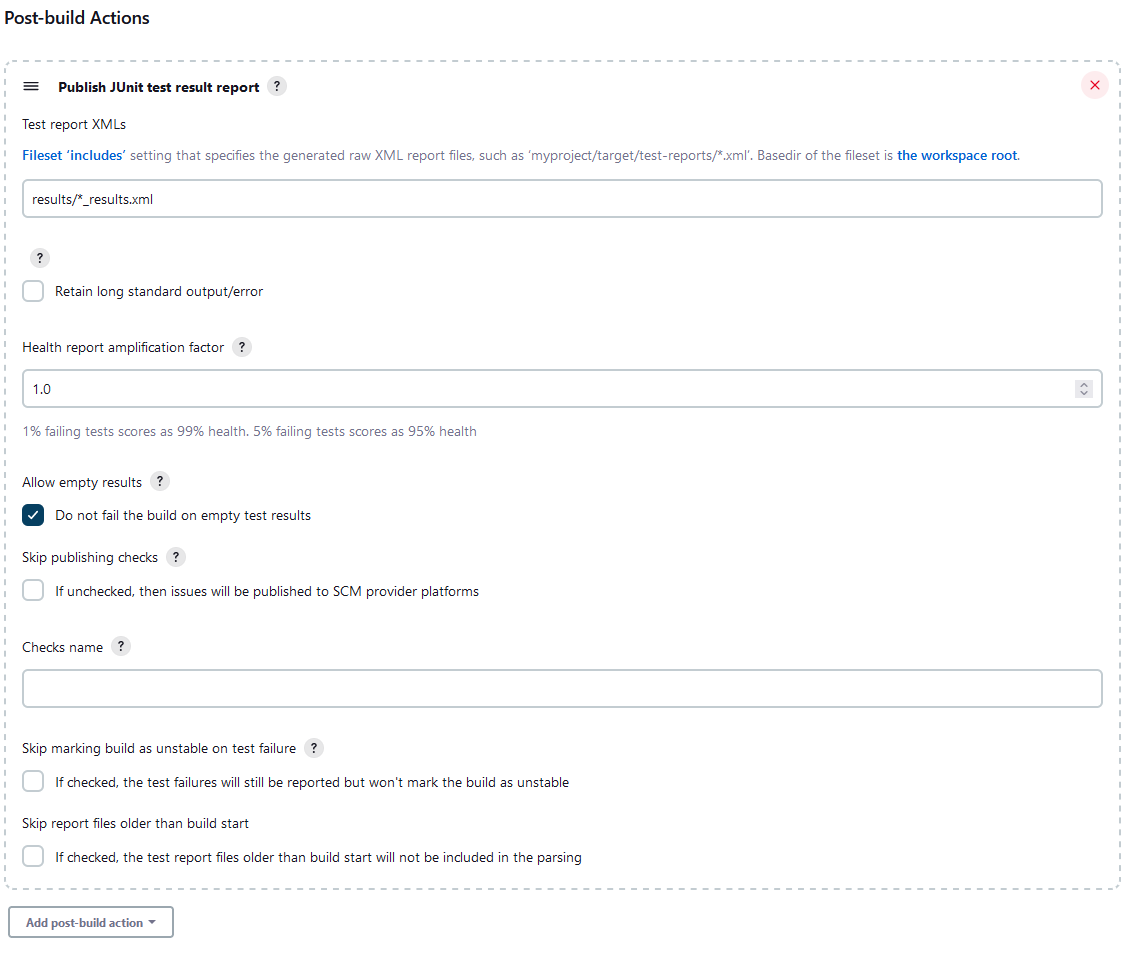
Finally we want to add a Post-Build Action which will take our output .xml and publish this to the run dashboard. this will give us a graph to show the recent test execution outcomes.
Below is the outcome of the Freestyle Project. The dashboard for the Freestyle Project shows the junit test case results.

Jenkins Pipeline Setup
Jenkins pipeline jobs are yml based jobs which can perform the same steps as a freestyle project. Instead of using a GUI based building structure you define the steps via code. A pipeline job provides a much nicer output display then you get with a Freestyle Project.
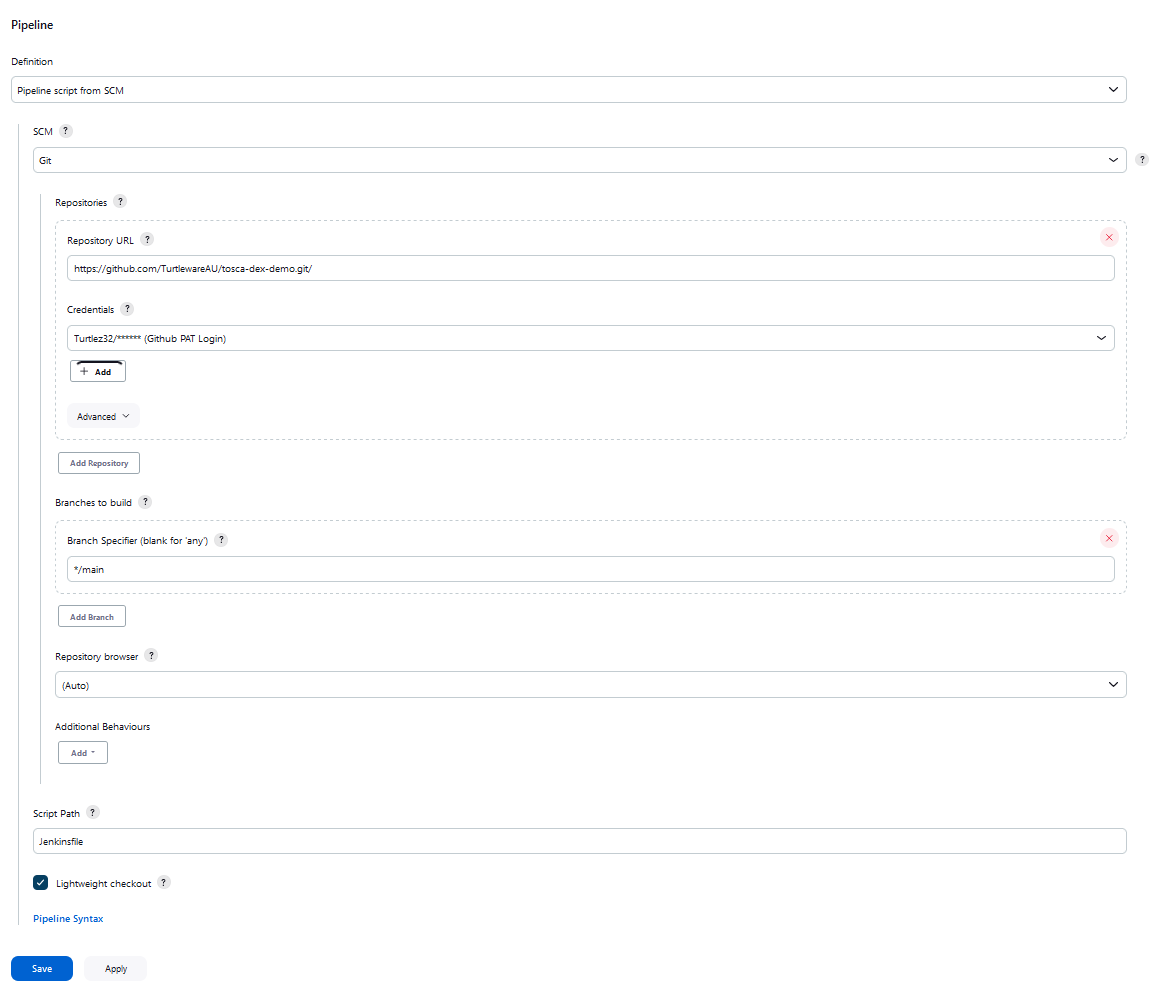
Here is the GUI setup for the Pipeline Job
Everything we need is setup in the one step, we select Pipeline script from SCM this will link our git repository to the job, and then download the Jenkinsfile, and perform the steps.
Our Pipeline file is in the following structure.
node {
  stage('SCM') {
    checkout scm
  }
  stage('Perform Test Execution') {
    sh 'chmod +x tosca.sh'
    sh './tosca.sh --toscaServerUrl http://10.0.44.40 --projectName tosca_demo --eventsConfigFilePath test.json'
  }
  stage('Publish Test Results') {
    junit 'results/*_results.xml'
  }
  stage('Clean Workspace') {
    cleanWs deleteDirs: true, notFailBuild: true
  }
}

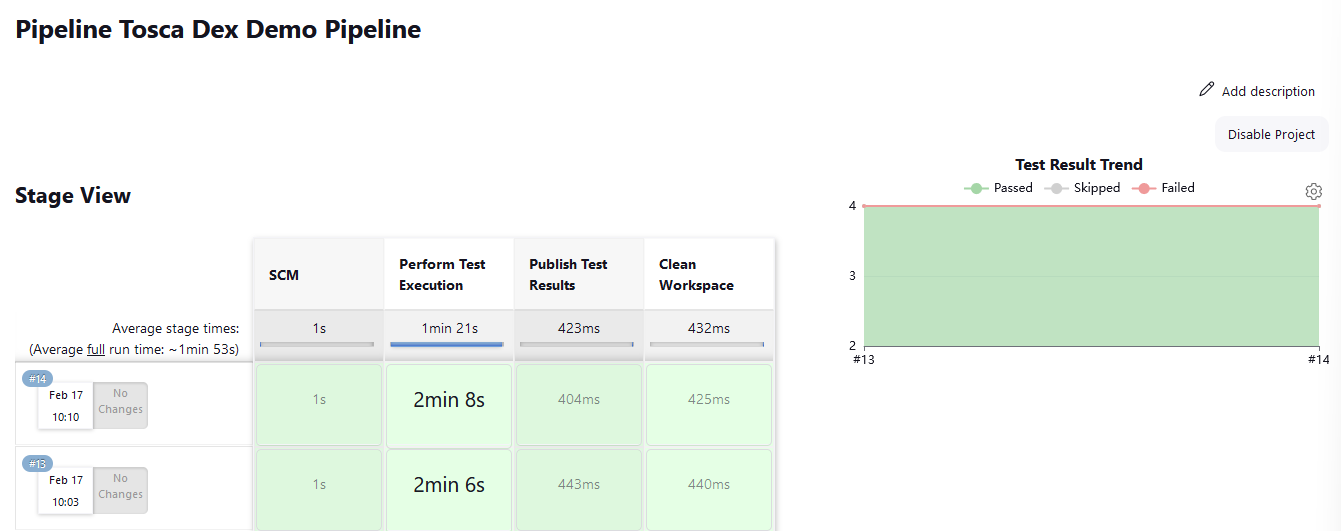
Below is an example output on the Pipeline Dashboard for a given pipeline.
Jenkins Pipeline with Tosca HTTPS
Below is the pipeline yml required for a Jenkinsfile using the HTTPS connection. Here the yml is being run on a linux agent
node {
  stage('SCM') {
    checkout scm
  }
  stage('Perform Test Execution') {
    sh 'chmod +x tosca.sh'
    sh './tosca.sh --toscaServerUrl https://tosca.turtleware.au --projectName tosca_demo --eventsConfigFilePath test.json --clientId 6Vwyt2JTT0CrfL3JZ0H3iA --clientSecret K3IVICJQRUW9o6_QMsNaiQK1RDVyvP6kaVEyONtoSIfQ --insecure'
  }
  stage('Publish Test Results') {
    junit 'results/*_results.xml'
  }
  stage('Clean Workspace') {
    cleanWs deleteDirs: true, notFailBuild: true
  }
}
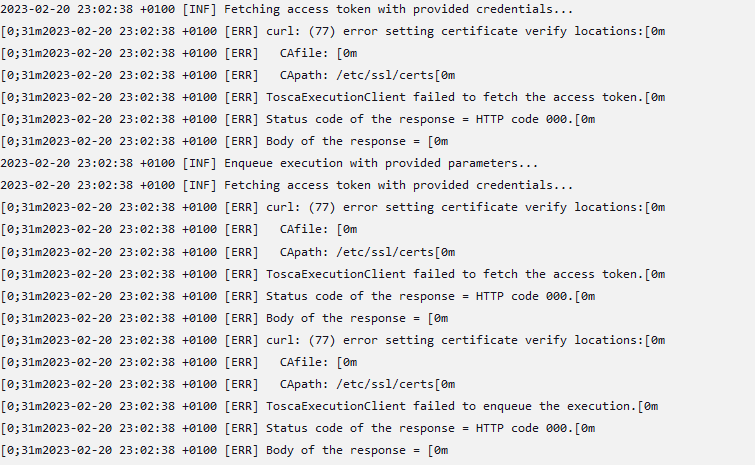
We need the --insecure flag set as there is no certificate installed on the machine and you will get the following error when you run the pipeline. "curl: 77 error setting certificate verify"
Jenkins Freestyle Project
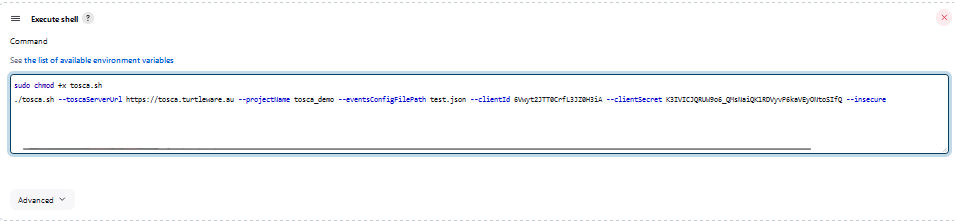
For the freestyle project we need to change the line were we call the tosca.sh file and perform the same execution with the new HTTPS Url.
sudo chmod +x tosca.sh
./tosca.sh --toscaServerUrl https://tosca.turtleware.au --projectName tosca_demo --eventsConfigFilePath test.json --clientId 6Vwyt2JTT0CrfL3JZ0H3iA --clientSecret K3IVICJQRUW9o6_QMsNaiQK1RDVyvP6kaVEyONtoSIfQ --insecure